ARINC 429 Parser Read
ARINC 429 Parser Read — Reads ARINC 429 words from
one channel
Library
Simulink® Real-Time™ - Speedgoat
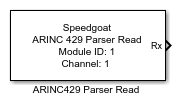
Description
The ARINC 429 Parser Read block consists of a masked subsystem, which adds an
additional functionality layer to the existing IO682 Receive block. The subsystem is
dynamically populated with a set of preconfigured ARINC 429 Unpack blocks, the
corresponding IO682 Receive blocks, preconfigured output ports, and the
interconnecting lines. The ARINC 429 Parser Read block mask allows users to select
which configuration file messages should be received.
The ARINC 429 Parser Read block cannot be edited when linked to a custom
library because the block contains instance-specific data that cannot be shared across links.
The block remains editable within the library itself; changes made there are
reflected in all linked instances. Additionally, the block cannot be used within
subsystem models as these are not supported.
Ports
Outputs
-
Rx
Outputs a single bus containing all enabled messages. Each message
contains the signals defined in the database, the timestamp of the
message received, a status flag indicating if the message was received,
and the raw ARINC 429 word.
Parameters
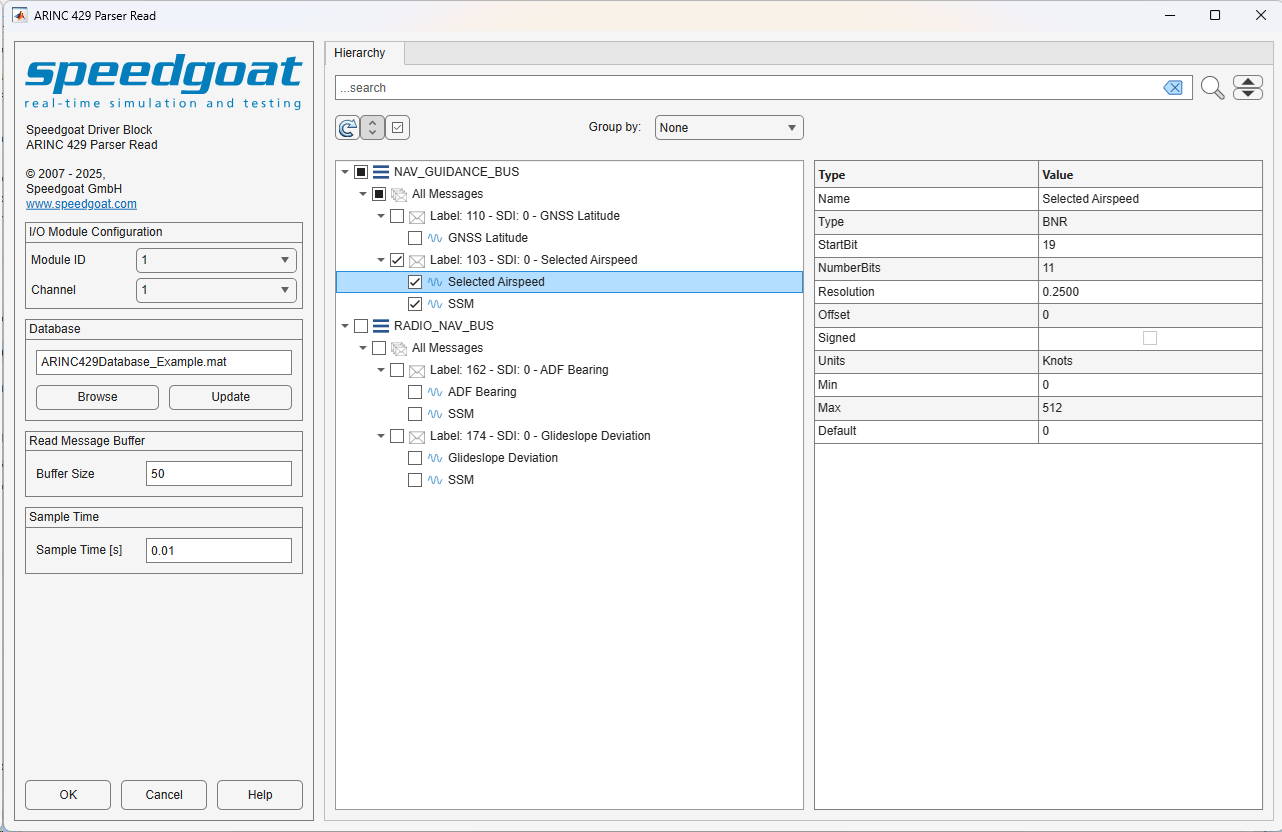
I/O Module Configuration
-
Module ID
Selects the IO682 I/O module with which this driver block
communicates. The list is populated according to the IO682 Setup blocks
in the model.
-
Channel
Select the IO682 channel with which this driver block communicates.
Database
-
Browse
Select a configuration file from your folders by clicking the browse
button.
Refer to the Usage Notes for more
information about the configuration file.
-
Update
Use this button if the configuration file changes.
Read Message Buffer
-
Buffer Size
Select the buffer size of the IO682 receive block which this driver
block communicates.
Sample Time
-
Sample Time
Defines the base sample time at which this driver block gets its sample hit. This
parameter can also be set to -1 for inherited
sample time. The units are in seconds.
Hierarchy Tab
All messages defined in the selected configuration file are displayed in the
Hierarchy tab. Detailed information about the
various signals is displayed when a specific message is selected.
Hierarchy Tree
-
Search
The Hierarchy tree has a Search field available, which highlights
nodes found in this tree. You can cycle through highlighted nodes using
the up and down arrow buttons next to the Search button. Clear the Search field to clear the node highlighting.
-
Refresh
This button refreshes the Hierarchy tree and the Details Table.
-
Expand
This button expands or collapses all nodes in the Hierarchy tree.
-
Enable all
Allows users to enable or disable all available messages in one
click.
-
Group by
Allows users to sort the messages either by None, Equipment, or
Channel.
Details Table
The Details Table shows all the information
available in the configuration file for the selected node. Depending on
the hierarchy level, different types of information are displayed. No
actions are available for this table.