MSCP Setup
MSCP Setup — Configure the MSCP Setup
block
Library
Simulink® Real-Time™ - Speedgoat
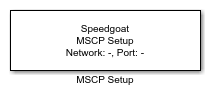
Description
The MSCP Setup block allows the user to configure an entire EtherCAT chain
consisting of the Speedgoat real-time target machine acting as the EtherCAT main
device connected to one or multiple MSCP devices. Multiple MSCP devices are
connected in a daisy chain.
The order and the configuration of the devices listed in the MSCP Setup block must
match the devices connected on the EtherCAT bus. The real-time target machine is
connected to device 1, device 1 is connected to device 2, and so on.
Ports
This driver block has no input or output ports.
Parameters
Network Parameters
-
Sample Time
Configure the Sample Time of the data
exchange on the EtherCAT network. All MSCP Read and MSCP Write blocks
will operate with this sample time.
-
Network Index
The Network Index is a user-defined
ID to associate the MSCP Read and MSCP Write blocks with the
corresponding MSCP Setup block. The value must be an integer between 0
and 11.
-
Port Number
Identifies the Ethernet port to be used on the real-time target
machine. Use the Port Number to select
the nth EtherCAT interface as listed by
speedgoat.configureEthernet. With Port Number 1 you select the first EtherCAT interface.
Buttons
-
Help
Opens this help page.
-
Save
Saves all settings from the block mask. This process can take a few
seconds.
-
Cancel
Discards all changes and closes the block mask without saving.
Configuration
Slot Configuration Tab
-
Adding and Removing Devices
Add and remove MSCP devices with the buttons below the table (green
+ to add and red x to remove a device). Adding a new device
will insert 11 rows, one for each slot of an MSCP device. Removing a
device will delete the respective entries from the table. A confirmation
is required before an MSCP device is deleted.
-
Editing the Table
Specify the Module Type for each
Slot to match the configuration of
connected MSCP devices. The Module Type
can be changed by double-clicking the respective cell and selecting a
different Module Type from the
drop-down menu.
Module Settings Tab
-
Module Selection
The selection drop-down menu lists all MSCP modules that have been
configured in the table on the Slot
Configuration tab. After selecting an item, Module Settings will load. The settings
options can vary based on Module Type.
Module Settings cannot be changed
during runtime.
Utilities Tab
-
Read Device Information
By clicking the button Generate
DeviceInfoMdl, a new Simulink model can be automatically
generated. The purpose of this model is to easily read out device
information of all the MSCP devices connected to the target machine. Run
the generated model to read out firmware versions of connected MSCP
devices.
-
Firmware Update
Clicking the button Start Firmware
Update starts the process of updating the firmware of
connected MSCP devices as set up on the Slot
Configuration tab. Follow the on-screen instructions to
update the firmware of all connected MSCP devices.
Firmware updates are provided with new versions of the Speedgoat I/O
Blockset.