IO619 - Setup
IO619 - Setup — Configure the IO619 MVB
interface
Library
Simulink Real-Time - Speedgoat
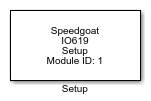
Description
Your model can contain only one Setup block
for each I/O module in your target machine.
Ports
This driver block has no input or output ports.
Parameters
Main Tab
-
Module ID
The Module ID has two functions:
It defines the logical connection between the Setup block and its I/O
blocks
It also informs the auto-search feature of the PCI Slot parameter. If
only one I/O module of this type is installed, the Module ID must be set
to 1. If n modules are installed, it
must be in the range 1:n. Not all the I/O modules installed in the
target machine need to be used. To see how each I/O module maps to a
Module ID, use this Speedgoat API:
speedgoat.getIoInterfaces("TargetName", "mySpeedgoat")
-
PCI Slot (-1: auto-search)
There are two approaches for mapping this block to a specific I/O module installed
in your target machine. All modules of the same type must be configured using the
same method.
Auto-Search: with the default value -1 the I/O module will be automatically located in the
target machine. If you have multiple modules of the same kind, the
Module ID defines which module is associated with this block. To see how
each I/O module maps to a Module ID, use this Speedgoat API:
speedgoat.getIoInterfaces("TargetName", "mySpeedgoat")
Explicit Addressing: to explicitly define the logical address of the
I/O module in the target machine, you can provide the PCI bus and slot
numbers as a vector: [bus, slot]. To determine these numbers, run the
following command in the MATLAB command window:
speedgoat.getIoInterfaces("TargetName", "mySpeedgoat", "Advanced", true)Note
that the PCI address can change whenever an I/O module is added or
removed – usually, auto-search is the best option.
-
Enable Bus Administrator
Select whether the device should operate as a bus
administrator.
-
Config File
Specify the name of the configuration file. Click the Browse button to easily find your file or
enter it manually.
For more information about the configuration file, see: Bus
Administrator Configuration File.
-
Master-Slave Timeout
Specify the Master-Slave timeout in microseconds. Possible values are
multiples of 1 microsecond up to 255 microseconds. If 0 is entered, the
driver uses the default value of 42.7 us.
Device Tab
-
Port Configuration
A configuration file can be used to ease the configuration of the
process data blocks. If a configuration file is not used, the port
settings must be entered manually for every process data block.
Furthermore, the Process data block outputs its data as a Simulink bus
containing the variable names from the specified configuration
file.
-
Config File
Specify the name of the configuration file. Click the Browse button to easily find your file or
enter it manually. By clicking the Refresh
Data button, the whole configuration file is parsed
again.
For more information about the configuration file, see: Device Configuration File.
-
Selected Device(s)
Displays the selected device(s) name. The device(s) can be selected by
clicking the Select Device(s)
button.
![[Note]](images/note.png) | Note |
|---|
If more than one device is selected, the device address must be
manually set because a physical device can only have one
address. |
-
Device Address
Specify the address of the device.