Interrupt Setup
Interrupt Setup
Library
Simulink Real-Time - Speedgoat/Utilities
Description
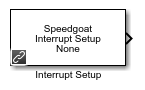
This block represents hardware interrupts from Speedgoat I/O modules. It can be
used to asynchronously trigger a subsystem or provide the pulse for the model’s base
rate.
![[Note]](images/note.png) | Note |
|---|
This block cannot be used in a referenced model or in variant
subsystems. |
Supported I/O Modules
All Speedgoat I/O modules with interrupt functionality can be used with this
block.
Ports
Outputs
-
If the Use as Model Trigger checkbox
is unchecked, the Interrupt Setup block has one output port which can be
connected to a Function-Call Subsystem block.
Refer to the usage notes
if you want to use the interrupt in a referenced model.
Parameters
Selected Interrupt
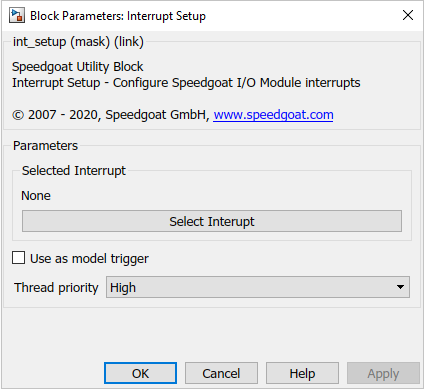
The Select Interrupt button opens a
MATLAB Application which allows you to select one of the available
interrupt sources.
Choose your interrupt source using the Select
Interrupt drop-down menu. The list is generated based on
all the Setup blocks of interrupt-capable I/O modules in your
model.
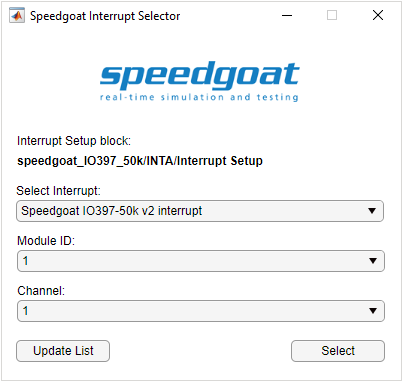
If you have more than one of the selected I/O modules in your model,
select the appropriate Module
ID.
If you have more than one interrupt channel available, select the
appropriate Channel.
If you are using the Interrupt Setup block in combination with a
Simulink-programmable FPGA I/O module targeting the HDL Coder workflow,
you will only be able to select your interrupt source in the generated
model once you run through the HDL Workflow Advisor.
-
Use as Model Trigger
Check this box if you want to trigger your model’s base rate with this
interrupt source instead of the CPU timer. Only one Interrupt Setup
block per model can have this functionality enabled.
When the interrupt is used to trigger the model, the real-time
application will use the interrupt signal to trigger the base rate.
Since the model does not implicitly know how much time will pass between
two interrupts, you need to make sure the fundamental sample time is
defined accordingly. Refer to the MathWorks web documentation to learn more about the
fixed-step size.
The simulation time of your model is defined by this fixed-step size
and will therefore only be correct if the latter matches the time
interval between two consecutive interrupts.
Example: Suppose the base rate of
your model is 1 kHz, but the interrupt used as a global model
trigger is generated at 10 kHz. The simulation time shown on the
target screen will increment 10x faster than expected. To fix this, set
the fixed-step size in your model's configuration properties to 1/10e4
or 0.0001
-
Use in Polling Mode
Check this box if you want to enable Polling
Mode. In Polling Mode,
the block will continuously query the selected interrupt source instead
of idly waiting for an interrupt to occur. Polling
Mode is available for the model trigger interrupt source.
When using polling mode, one cpu core becomes unavailable for running
other model rates or asynchronous tasks. However, Polling Mode offers significantly lower latency response
to the interrupt source.
-
Thread Priority
If you use the interrupt to trigger an asynchronous subsystem, you can
decide at which priority it will be executed:
High: The subsystem will
execute with a priority higher than the base rate of the
model. Use this if a very quick reaction time is required
and the computational load is low. Priority value =
95
Low: The subsystem will
execute at a lower priority. Use this for less time-critical
background tasks. Priority value = 50
Manual: Set the priority
value directly
-
Manual Priority
If you set the Thread priority to Manual, enter the desired value here. Values from 1 to
99 are permissible.