IO723 - Read Interface
IO723 - Read Interface — IO723 Read Interface
supporting database visualization and signal selection
Library
Simulink® Real-Time™ - Speedgoat
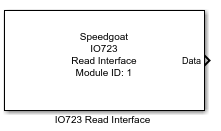
Description
The IO723 Read Interface block executes according to the settings in the IO723
Read Interface application. The execution primarily depends on the configured signal
status (enabled or disabled) on the parsed database.
Each execution of an IO723 Read Interface block consists of one or more message
payloads being retrieved from the block's software buffer.
Each Read Interface block can be configured using the application, which can be
opened by double-clicking the block. The IO723 Read Interface application bridges
RBS project signals to Simulink® model signals
based on a manual signal status selection process. The RBS
project must first be configured using the FL3X
Config Softwareand the Setup block.
As an alternative to configuring the Read Interface block using the application,
the IO723 Block Config
class can be used to perform the mapping process programmatically.
The IO723 Read Interface block consists of a subsystem dynamically populated with
output ports that construct a virtual bus, IO723 Read blocks and the interconnecting
lines. Consequently, when an IO723 Read Interface block is placed in a model, the
link to the library is broken.
Ports
Outputs
-
Data
Data received as a virtual bus structure. The bus structure is built from the hierarchy levels of the RBS project signal enabled. The top-level bus name is
always the name of the Data output
port. Only signals enabled in the IO723 Read Interface are output to the resulting bus.
The size of the each signal is defined by the payload size
described in the RBS project.
Parameters
-
Module ID
This ID defines the link to the corresponding Setup block
-
Sample Time
Defines the base sample time at which this driver block gets its sample hit. This
parameter can also be set to -1 for inherited
sample time. The units are in seconds.
Configure Interface
When configuring the interface, there is one tab for each communication protocol.
In the RBS project, all available networks
corresponding to one protocol are combined into one tab. Each tab can be configured
differently from the others. The configuration settings of each tab are combined
into one when applying the final configuration settings.
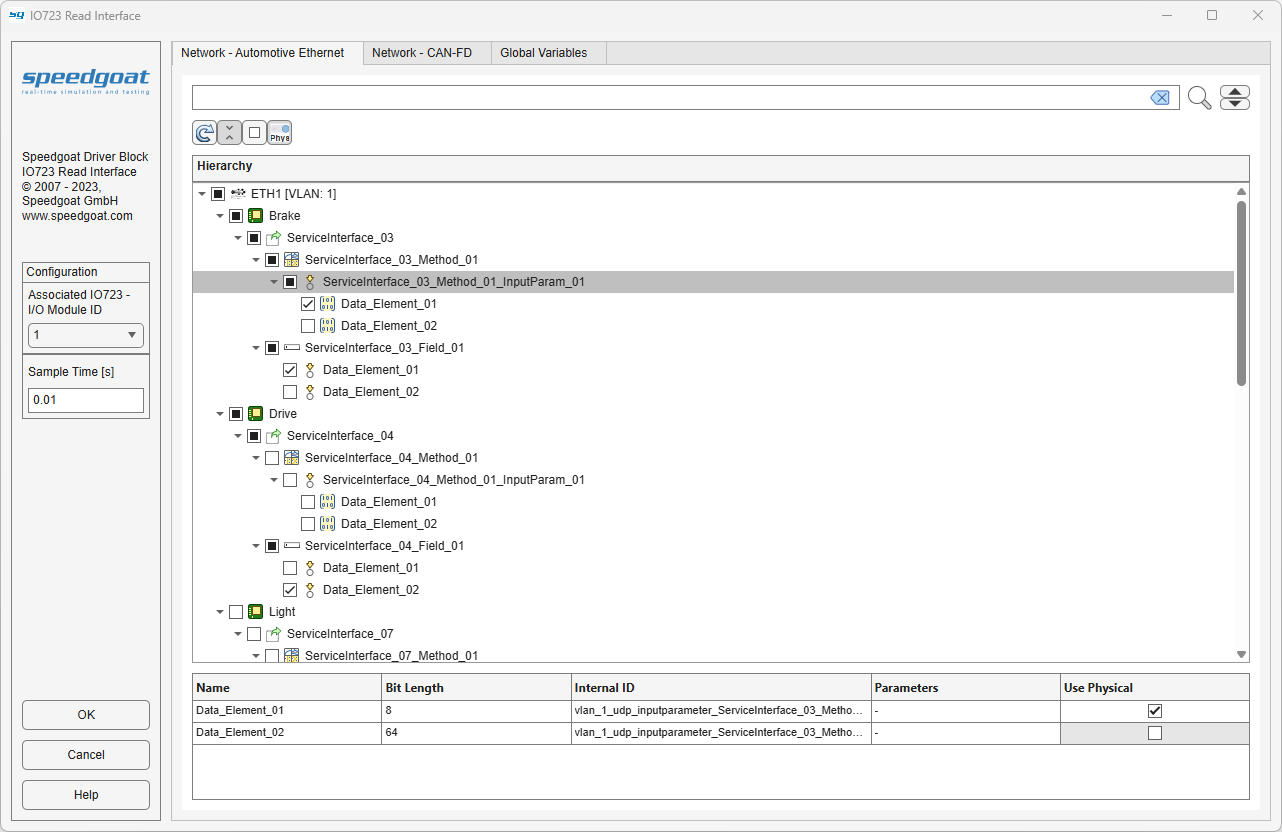
Hierarchy
The Hierarchy shows a tree view of
the RBS project structure. The icons
indicate the node type in the according protocol structure. Nodes at any
level can be enabled using the adjacent checkboxes. Enabling or
disabling a node higher in the hierarchy will also automatically change
the status of all subordinate nodes.
Details Table
The Details table shows all the
information available to the subordinate nodes of the node currently
selected in the Hierarchy tree. No
actions are available for this table.
Search and Options Panel
-
Search
The Hierarchy tree has a Search field available which will highlight
nodes found in this tree. You can cycle through highlighted nodes using
the up and down arrow buttons next to the search button. Clear the
search field to clear the node highlighting.
-
Refresh
The Refresh button will update the
Hierarchy tree. Refreshing the
Hierarchy tree will update the
structure of the RBS project configured
in the connected IO723 Setup block.
-
Expand All Nodes
The Expand All Nodes state button
will expand or collapse all nodes in the Hierarchy tree depending on the state of the
button.
-
Check All Nodes
The Check All Nodes state button will
check or uncheck all nodes in the Hierarchy tree depending on the state of the
button.
-
Check Selected Use Physical
The Check Selected Use Physical state
button will check or uncheck all Use
Physical properties of selected nodes in the Hierarchy tree depending on the state of the
button. Nodes with Use Physical enabled
will process the values of received signals as physical and if disabled
process them as raw byte arrays. The physical attributes for processing
a signal with Use Physical enabled are
defined in the RBS project.
Configure Global Variables
When configuring the interface, there is a tab for retrieving values for global
variables. In the RBS project, all available global
variables are combined into one tab.
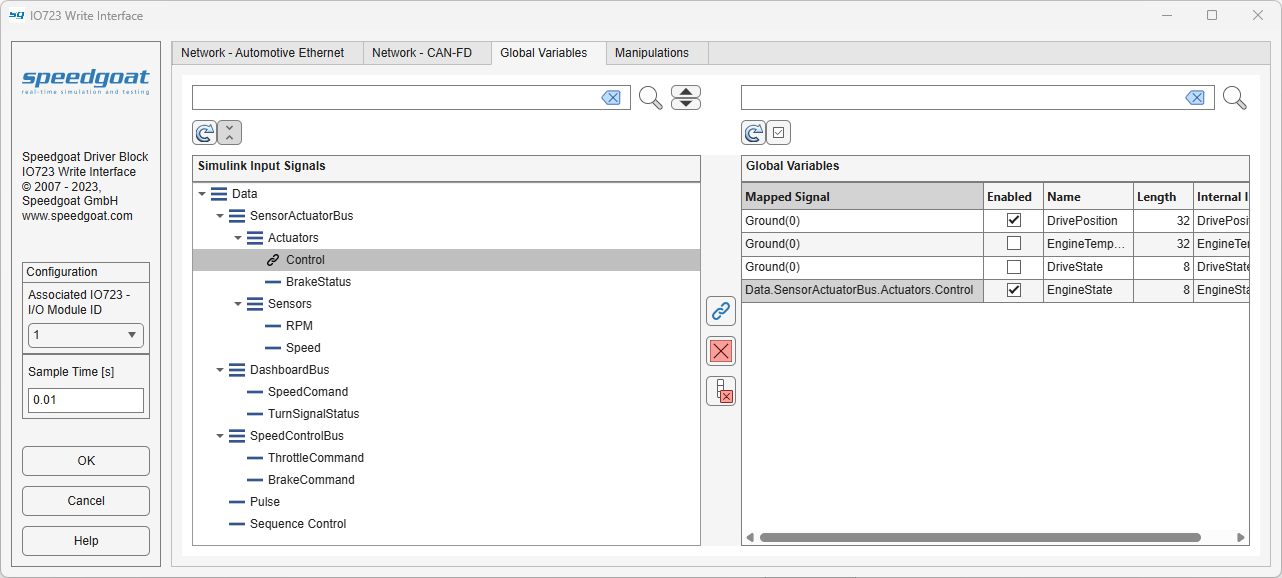
Global Variables
The Global Variables shows a table
view of the global variables defined in the RBS
project structure. Access to retrieving the value of a
global variable can be enabled using the adjacent checkbox.
Search and Options Panel
-
Search
The Global Variables table has a
Search field available. Any rows
found will be highlighted in the table. Clear the search field to clear
the row highlighting. Rows are searched based on their Name only.
-
Refresh
The Refresh button will update the
Global Variablestable, based on the
structure of the RBS project configured
in the connected IO723 Setup block.
-
Check All Variables
The Check All Variables state button
will check or uncheck all variables in the Global
Variables table depending on the state of the
button.