IO731 - Configuration
IO731 - Configuration — Configure the IO731 TSN I/O
module
Description
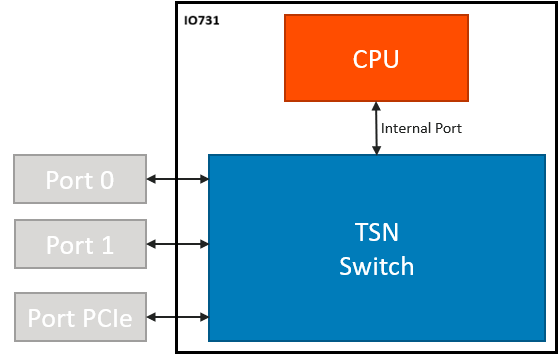
The IO731 combines TSN Endpoint and TSN Bridge functionality into a single I/O
module. Two SFP Ethernet ports (Port-0 and Port-1) provide access to the TSN
network. The Ethernet interface (PCIe) is available within Simulink® Real-Time™ to
access the data packets. The IP address of the PCIe Ethernet interface can be set in
the Speedgoat Ethernet Configuration Tool. The Internal Port is used to access the
CPU of IO731, which allows you to configure the module. The IP address of the
Internal Ethernet interface can be set in the Speedgoat IO731 Configuration
Tool.
Configuration
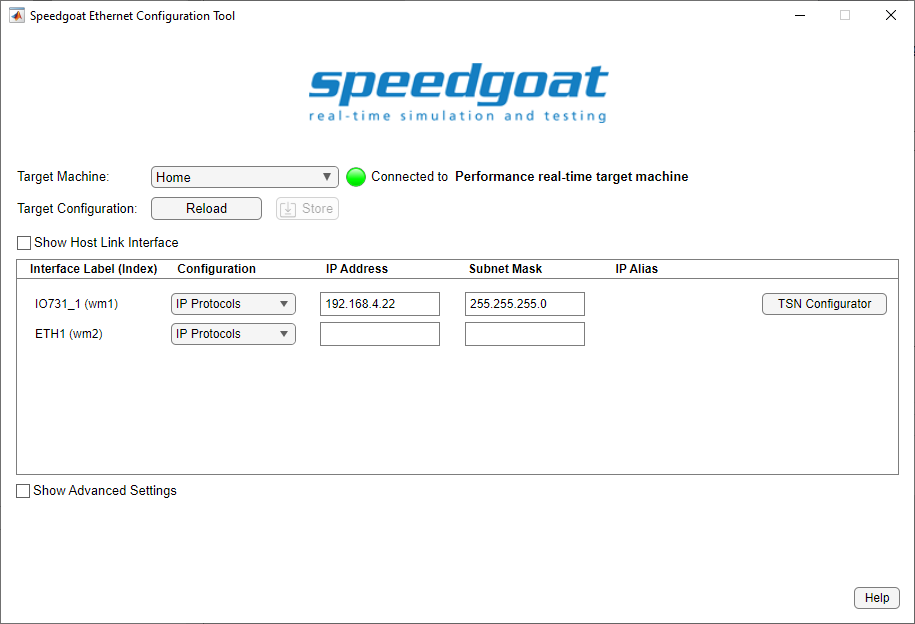
This interface is configured using the Speedgoat Ethernet Configuration
Tool. To open the tool, run the following command in the MATLAB Command
Window, then click the TSN Configurator button:
speedgoat.configureEthernet
![[Note]](images/note.png) | Note |
|---|
When you start the TSN Configurator, a connection through the host link to the
internal port of the IO731 is established. The TSN
Configurator button turns green to indicate this. As long as the
configuration tool is open, the bridge between the host link and the PCIe port
of the IO731 is active. |
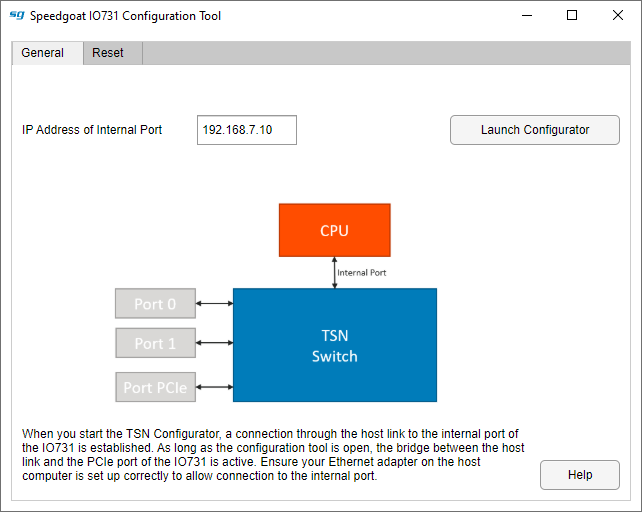
General Tab
-
IP Address of Internal Port
Specify the IP address for the internal port.
| Note |
|---|
If you want to change the IP address, first connect to the
IO731 and then update the IP address. If you do not connect to
the module, you cannot establish a connection and store the new
value. |
-
Launch Configurator
Launches the configurator in your default web browser.
| Note |
|---|
You must be connected to your target machine using the
host-target link to be able to access the IO731. |
Reset Tab
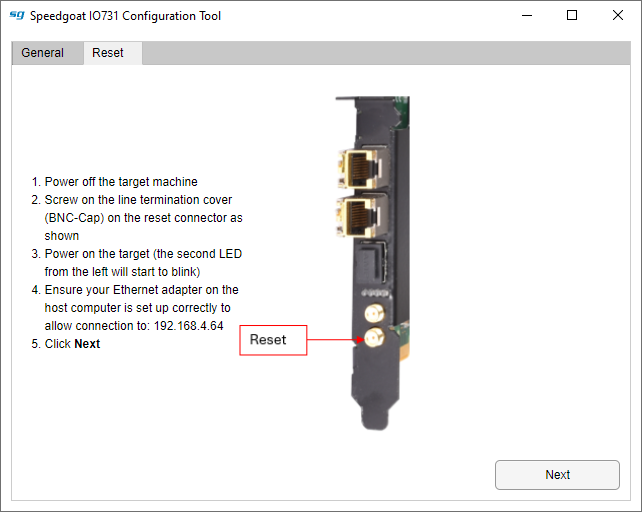
This utility guides you through the reset procedure of the IO731. Follow the
instructions step-by-step as indicated by the tool.
-
Next
Follow the instructions listed and then click Next to continue.
| Note |
|---|
In case of an error, check whether you can ping the IP address
192.168.4.64 from the host before you click Next again. |
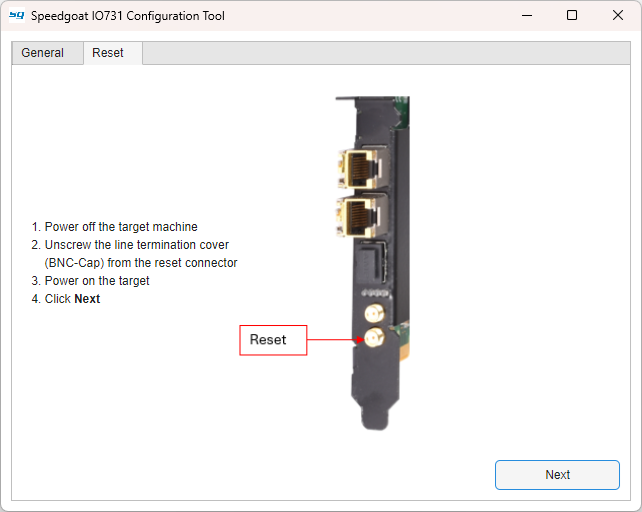
Follow the instructions listed and then click Next to continue.
| Note |
|---|
In case of an error, close the configurator and run the reset procedure
again from the beginning. Make sure to only click Next when your target has fully started up. |
-
Finish
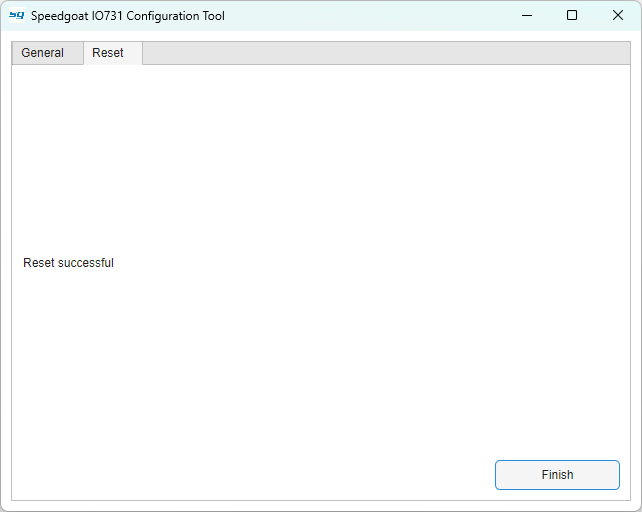
After a successful reset, click Finish to complete the reset procedure.
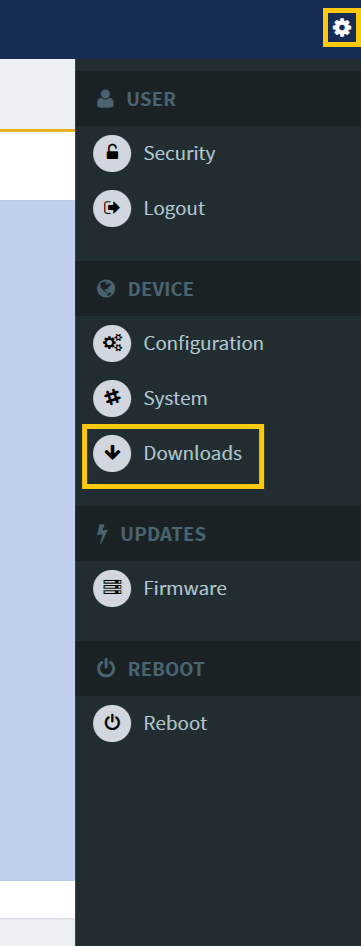
Configurator Documentation
The documentation of the configurator is stored on the module to match the
current firmware version. It can be found by clicking the Settings icon on the
top-right and then select Downloads. Then click
the USER GUIDE icon to download the
documentation.