Speedgoat Tools
Speedgoat Tools —
Speedgoat Ethernet Configuration Tool
Ethernet Configuration
![[Note]](images/note.png) | Note |
|---|
To debug networking issues, we recommend analyzing the traffic with a tool,
such as Wireshark. |
In addition to the Host Link, most Speedgoat real-time target machines feature
auxiliary Ethernet interfaces. More interfaces can be added with general-purpose
Ethernet I/O modules, such as IO71X, IO731, or IO791. Starting with R2020b, these
interfaces are configured with the Speedgoat Ethernet Configuration Tool. To open
the tool, run the following command in the MATLAB command window:
speedgoat.configureEthernet
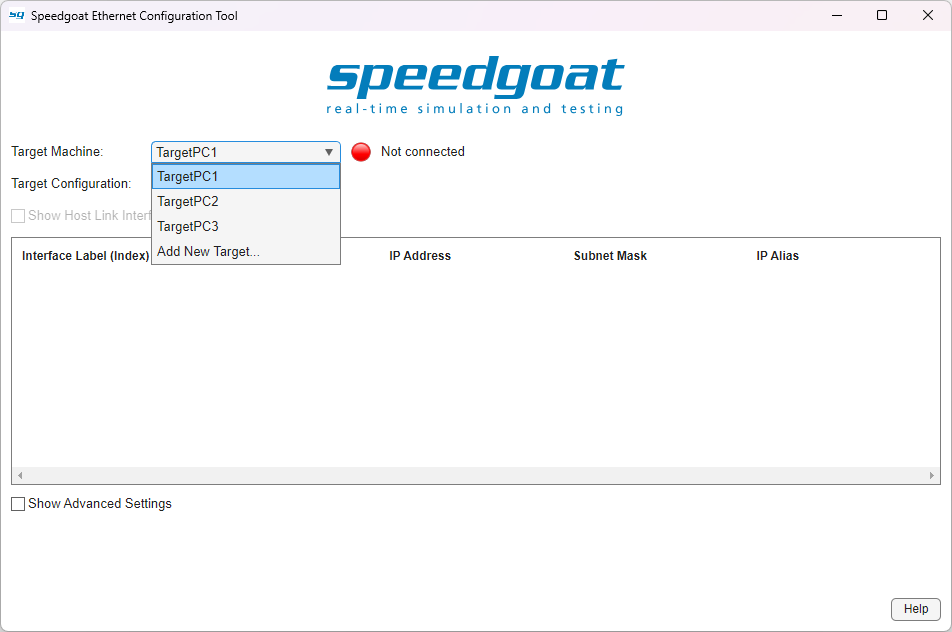
Select your target machine and click Connect &
Load to get started. The tool will then try to establish a connection
and load the current Ethernet configuration. If your selected target is already
connected, the configuration will load automatically.
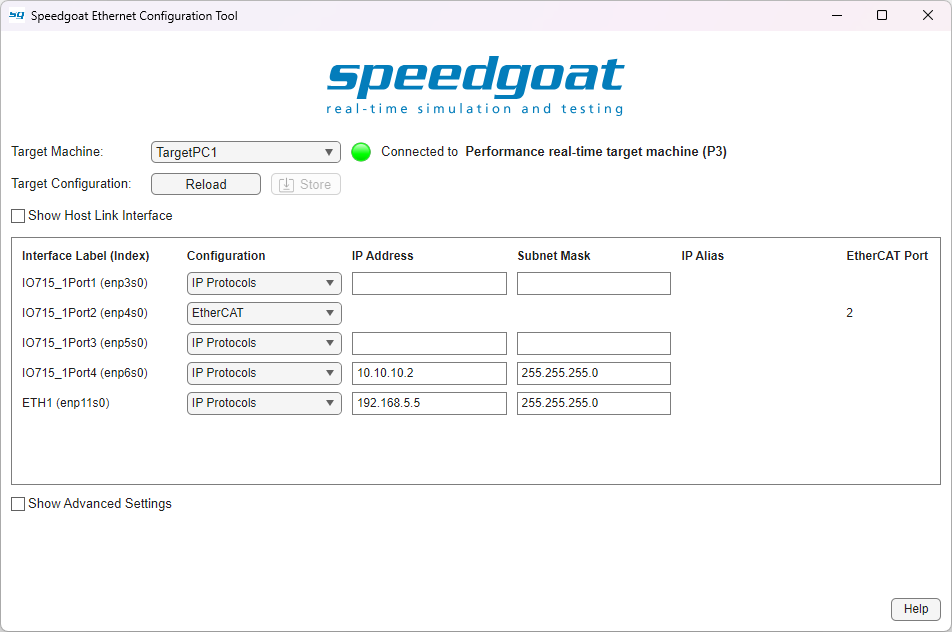
Configure each of your Ethernet interfaces either for IP
Protocols (TCP/IP or UDP/IP) or EtherCAT. Note that for IP
Protocols, all Ethernet interfaces must be configured to separate
subnets. The Host Link is automatically configured
for IP Protocols through the slrealtime APIs
(Target Object, Simulink Real-Time Explorer).
If you select EtherCAT for at least one
interface, the EtherCAT Port column appears. You
will need to enter the information in this column in certain EtherCAT driver blocks
in Simulink. The value can be copied to the clipboard using the right-click
(context) menu.
After entering your configuration, click Store to
apply the settings to the target machine. It will automatically restart, if
necessary.
This configuration is now permanently stored on the target machine. It is not
associated with any application and is not affected by updating the target software
with the tg.update command.
Overriding the Host Link
Your target machine is configured to use the interface labeled Host Link for the host-target connection. If for some
reason you need to use a different interface, you can display it by checking
Show Host Link Interface.
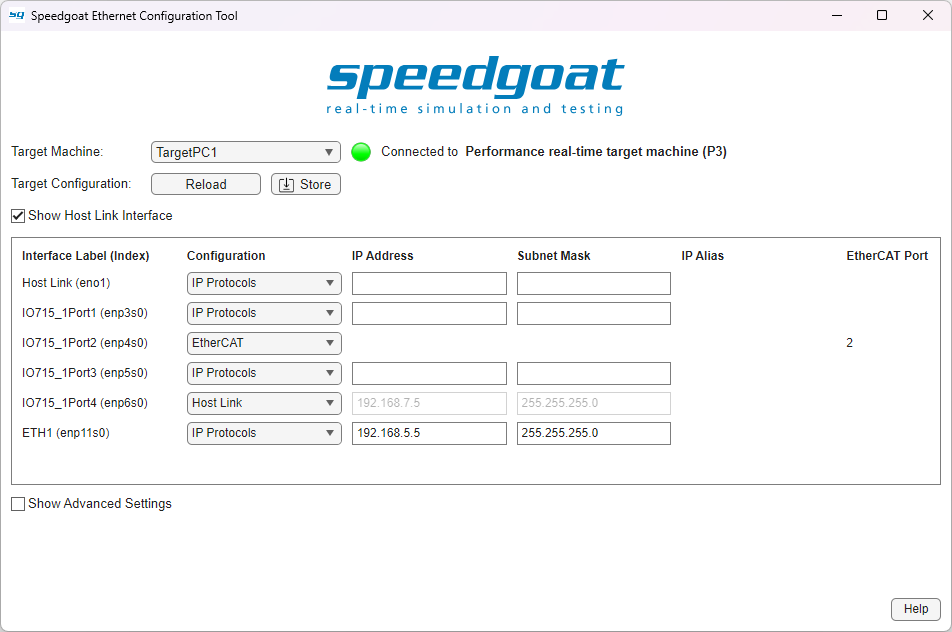
You can now configure the interface labeled Host
Link to be used with IP protocols and choose another interface for
your Host Link connection. One interface must be configured to act as the Host Link.
However, note that EtherCAT is not available on the interface labeled Host Link.
| Note |
|---|
Changing the Host Link interface is not supported on the Pulse real-time
target machine. |
Advanced Settings
Check the Show Advanced Settings box to configure
IP aliases, to change the default gateway, to restore your target machine to the
factory settings, and to show the Advanced Interface
Settings button.
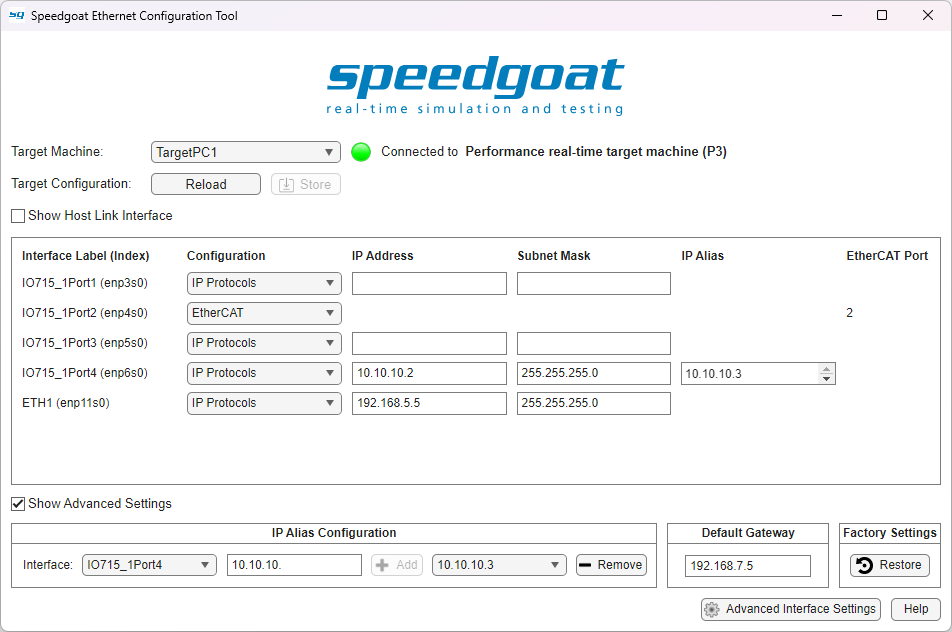
Alias Configuration
To add an IP alias, select an interface, then enter the IP alias address and
click the + Add button.
Interfaces will only appear in the drop-down list after they have been
configured for IP Protocols with an IP address
and a subnet mask and then applied to the target using the Store button.
The + Add button will only become active when
the alias address entered is valid. Changes will be applied to the target
machine immediately; there is no need to reboot the machine.
Up to 255 different IP aliases can be added to one Ethernet interface; use
semicolons to enter multiple addresses at once.
By default, all IP aliases have a subnet mask of 255.255.255.255. You can
optionally define a different subnet mask by appending a slash ('/') and the
network prefix length to the alias IP address. The prefix length is a decimal
number between 1 and 32 and defines the number of bits set to 1 (from left to
right) in the subnet mask. For example, to define the IP alias 192.168.10.1 with
subnet mask 255.255.255.0, enter "192.168.10.1/24".
To remove one or multiple IP aliases, select the alias in the drop-down list
and click the - Remove button. Repeat the
operation to remove further IP aliases.
Select All to remove all the IP aliases for
the selected interface.
The changes will be applied to the target machine immediately; there is no
need to reboot the machine.
IP alias settings, like all other Ethernet configurations, are persistently
stored on the target. The IP alias addresses for the interface used as Host
Link, however, are only persistent with MATLAB R2022a and later.
| Note |
|---|
Using protocols with many IP aliases on the Host Link interface
reduces the performance of data streaming to applications, such as
Simulation Data Inspector (SDI). |
| Note |
|---|
When defining IP aliases on different subnets than the primary IP
address, you may not be able to transmit network packets with the
default subnet mask, in this case you can set the subnet mask for the IP
alias as mentioned above. |
Default Gateway
To change the default gateway, enter a new value directly in the Default Gateway field. The chosen gateway must be on
the same subnet as one of the Ethernet interfaces configured for IP protocols.
Click the Store button to apply the gateway to
the target. The machine will then reboot automatically.
Factory Settings
To restore the factory settings, click the Restore button and confirm your selection. The Host Link will
retain its current IP settings but will move back to the interface labeled
Host Link (if you originally changed this
interface). The default gateway will be reset to the Host Link IP address and
all additional interfaces will be reset to IP
Protocols with no IP address set. The target machine will reboot
automatically.
Advanced Interface Settings
Click the Advanced Interface Settings button
to open a separate window with more interface-specific settings.
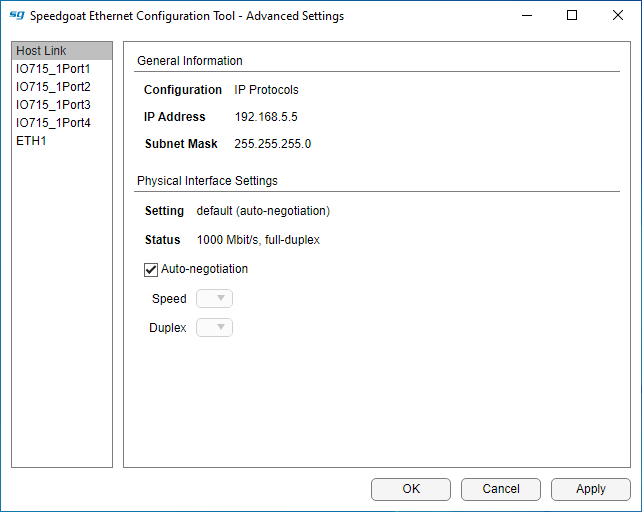
Under General Information, you can see the
current configuration, IP address and subnet mask. To change these settings, go
back to the main window.
Under Physical Interface Settings, you can
see both the current speed/duplex setting and the status of the interface and
also change the speed/duplex values manually. The default is to use
auto-negotiation, which determines the best speed/duplex values
automatically.
Using PTP
If you want to synchronize your target machine's clock with the IEEE 1588
Precision Time Protocol, you may need to set up the protocol to use a specific
Ethernet interface. Since not all Ethernet controllers can properly handle this
protocol, Speedgoat provides an API to assist with the configuration:
speedgoat.showPtpInterfaces
        Label           Index       PTPSupport                 Configuration
    _____________    ___________    __________    ________________________________________

    {'IO791_1A' }    {'enp8s0' }     {'Yes'}      {'EtherCAT'                             }
    {'IO791_1B' }    {'enp9s0' }     {'Yes'}      {'Not configured'                       }
    {'ETH1'     }    {'enp16s0'}     {'Yes'}      {'IP: 10.10.10.5 Subnet: 255.255.255.0' }
    {'ETH2'     }    {'enp17s0'}     {'Yes'}      {'IP: 192.168.5.5 Subnet: 255.255.255.0'}
    {'Host Link'}    {'enp19s0'}     {'Yes'}      {'IP: 192.168.7.5 Subnet: 255.255.255.0'}
If
the entry in the PTPSupport column is 'Yes', then the interface supports PTP and must be
configured for IP protocols.
The Index column shows the name of the interface
given by the operating system. To bind the PTP protocol, for example, to the
interface labeled 'ETH1', you must add '-i enp16s0'
to your tg.ptpd.Command. Refer to the MathWorks Simulink Real-Time help documentation to learn how to configure the PTP
daemon.
Configuring Host Link on the Target Machine
If you are unable to configure the IP settings of your host computer to connect to
the target machine, you can change the settings on the target machine
directly.
Connect a keyboard and a monitor to your target machine and follow these
instructions:
Switch from statusmonitor (on Console 1) to the shell on Console 2
using Ctrl+Alt+F2 (on MATLAB R2026a and
later) or Ctrl+Alt+2 (on MATLAB R2025b
and earlier)
Log in with root/root (unless you use a different root
password)
Use the following command to change the IP address and subnet mask:
speedgoat_setHostLink <ip-address>
[netmask]
Examples:
This configures the interface labeled Host Link
to use these settings immediately; no reboot is required.
Configuring Default Gateway on the Target Machine
If you are unable to configure the default gateway of your host computer to
connect to the target machine, you can change the settings on the target machine
directly.
Connect a keyboard and a monitor to your target machine and follow these
instructions:
Switch from statusmonitor (on Console 1) to the shell on Console 2
using Ctrl+Alt+F2 (on MATLAB R2026a and
later) or Ctrl+Alt+2 (on MATLAB R2025b
and earlier)
Log in with root/root (unless you use a different root
password)
Use the following command to change the default gateway: speedgoat_setDefaultGateway
<ip-address>
Example:
This configures the interface with the 192.168.7.5 IP address to be used as the default gateway; no reboot
is required.
The same command can be used to remove the setting and go back to the default
behavior. A reboot of the target machine will be required afterward: speedgoat_setDefaultGateway delete